
I’ve been putting it off for awhile now but the inevitable is happening. My kids are growing up. That means that safety measures need to be in place for their time online. Luckily, monitoring my kid’s iPhones and iPads will be easy with Safe Browser and Guardian from WebProtectMe. To be honest, I wasn’t even sure where to start or how to best protect my children until I discovered WebProtectMe and I am thankful for how easy it is to set up and use. Part of the reason I had been putting it off was because it seemed like such an overwhelming task. Taking the time to set it up will remove the burden of worry and put my mind at ease.
Modifying your child’s device before you give it to them consists of a number of steps. First, add a passcode that only you know. Next, remove the default Safari web browser and install a safer alternative that you can control and monitor. The WebProtectMe Safe Browser and WebProtectMe Guardian are a great pair of apps that work together to allow you to do as much monitoring as you want based on the settings you choose.
What are WebProtectMe Safe Browser and WebProtectMe Guardian?
Safe Browser is exactly what it sounds like. It’s a web browser with lots of protection built in to it. Safe Browser is free to download and use.
Guardian is an app that lets you fine tune and more tightly control what Safe Browser can do. Guardian is also the monitoring app. Unlike Safe Browser, there’s a $9.99 monthly fee to use it, but you can give it a try for a month for free, so there’s no risk. I also have a 40% off discount code you can use —mommieswithcents.
Here are some examples of what Safe Browser and Guardian can do to help you and your child:
•Temporarily block certain websites. Let’s say your daughter should be working on her book report but often gets distracted by cooking websites. You can block them until she’s finished with her report
•You aren’t comfortable with the content that can be found on YouTube. You can block it.
•You don’t have time to dig into your kid’s browser history but still want to understand what your child is doing online. You can get an overview of the sites that are visited, grouped by category.
•Safe Browser can protect your kids, and you, from phishing and nefarious sites, as well as eliminate annoying popups and advertisements — something we can all appreciate!
Getting started is easy
You’ll need to install two apps from the App Store: WebProtectMe Safe Browser and WebProtectMe Guardian. The easy way to find them is to search for “WebProtectMe” in the App Store. After you install them, you’ll need to set up an account with WebProtectMe, even if you’re going to stick with the basic, free service. It’s painless, and you can opt out if you don’t like them emailing you. If you need more guidance, you’ll find more detailed instructions in this article from the webprotectme.com website.
You’re all set for a great browsing experience!
Safe Browser will now let you browse with some restrictions already built in, including Safe Search enabled for Google, Bing, Yahoo, YouTube, Vimeo and Tumblr. It also blocks sites that fall under these categories, among others:
• Pornography, sex, nudity
• Sex Education & Abortion
• Drugs, alcohol, tobacco
• Violence
And even adult users should appreciate that it blocks these nasty things:
• Phishing
• Malware
• Key Loggers
• Hacking
All of this for FREE with the basic version! The pay-for account lets you block (or unblock) any of these, with more than fifty categories. You can completely customize your family’s protection:
•Customize whitelists and blacklists to allow or block specific websites
•Set per-user protection settings —great for letting an older family member have access to different websites than younger family members
You can see complete details here.
Monitoring without spying
A paid account gives you the advanced monitoring functions that alert you when your child has visiting a questionable site that you might want to look into a little further. Rather than constantly monitoring the browser history you’ll be able to see at a glance if there is anything that needs your attention. Some things aren’t blocked automatically but you’ll have the control to set up what you need. Let’s say your daughter is struggling with her body image because someone called her fat at school. You could block the word “fat”, so that if she tried to search for it, you’d see that as a warning in the monitoring screen. This function alone is worth the paid account and something I hadn’t even thought of!
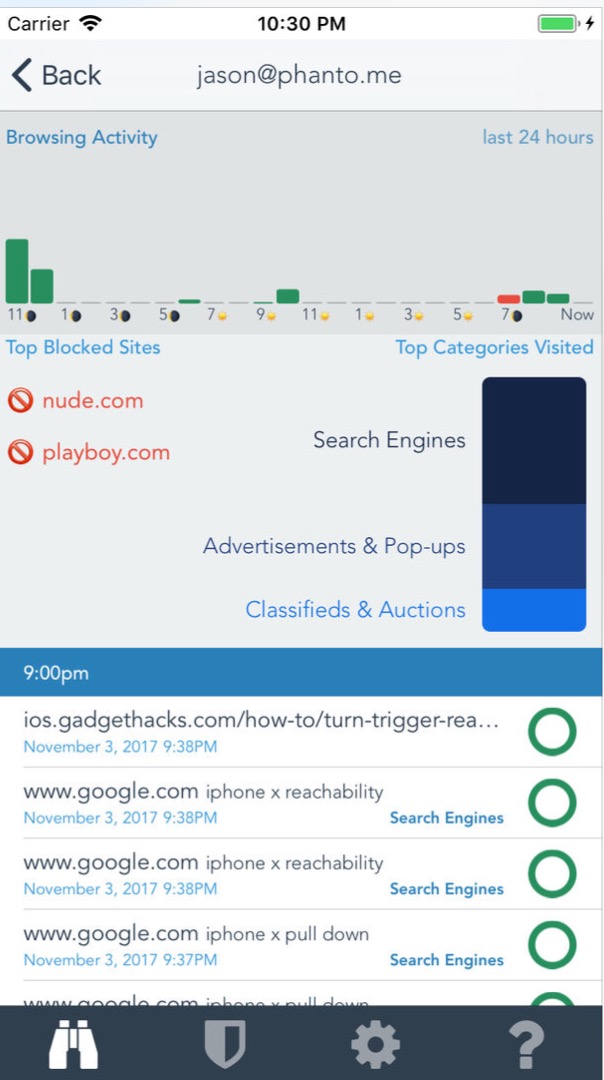
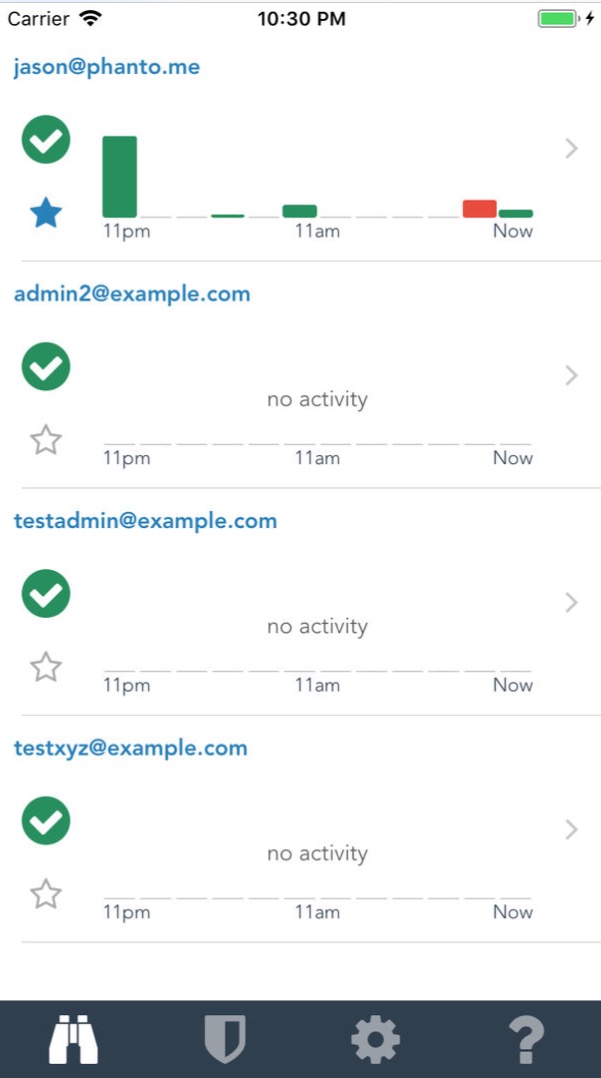 With the use of these apps you’ll see the categories of the sites your child visits to see where they are spending most of their time. You’ll also be able to see when thy are most active which can help you pinpoint problem areas — are they online when they are supposed to be doing their homework? During school hours? When they should be sleeping?
If your kids are using phones and tablets, consider giving Safe Browser and Guardian a try — I think you’ll be pleased with how easy it is to use. Plus, you’ll enjoy many of the benefits yourself! You can set up your own profile that protects you against phishing, botnets, and blocks ads. Get more info and set up your account today.
I haven’t heard of this,but I need to get it.